
Service & Support
Biometric Locks
Biometric Locks
Q&A
Biometric Key Safe 5435EURD
The 5435EURD can be unlocked using either a registered fingerprint or a user code. This gives you the flexibility to choose the access method that works best for you.
Before programming and using your lock box, you must first change the factory-set Master Code. Once your new Master Code has been created, you can register fingerprints and create user codes.
The Master Code is the main code used to manage and reset your Biometric Key Lock Box. Your Select Access™ comes with a unique factory-set 12-digit Master Code, which can be found on the left-hand side of the instruction sheet and must be changed before using the product.
Your Master Code is unique to your Select Access™ and is your ultimate backup solution if you forget your combination and need to regain access to your Biometric Key Lock Box.
Make sure you keep it in a safe place. For easy future access, we recommend registering your Master Code securely at www.registermycombo.eu.
Please follow the instructions here to change the Master Code before first use.
Your Master Code is unique to your Select Access™ and provides a reliable backup if you ever forget your combination.
Keep it safe and easy to retrieve by registering your Master Code, user codes and fingerprints at www.registermycombo.eu.
Yes. You can register up to 100 fingerprints, making it easy to provide access to family members, colleagues or other trusted users. To keep track of who has access, we recommend saving the name associated with each registered fingerprint at www.registermycombo.eu.
Yes. You can remove an individual fingerprint using the registered fingerprint itself. If you want to remove all registered fingerprints at once, you can do so using the Master Code. Please follow the instructions provided here.
Yes. You can create user codes containing 4 to 12 digits. User codes can also be individually deleted or all removed using the Master Code.
If you forget your combination, the unique Master Code supplied with your lock box provides a recovery method.
You will need access to the Master Code and a USB-C power source to follow the recovery procedure below :
1. Remove the cap on the plug beneath the lock box and Power on the lock with USB Type C power bank.
2. Press and hold Lock & Unlock button for 5 seconds.
3. When lock beeps unlock button with the master code on the keypad and press the Unlock button.
4. Open the lock box. Press & Hold the RESET button with a pin for 8 seconds to reset all codes.
5. Upon opening the lockbox, all combinations are removed. Follow usual instructions to set up a new code or fingerprint.
The lock box can be temporarily powered via its USB-C port using an external power bank, allowing you to access the product when its batteries no longer provide sufficient power. Remove the silicone cover to access the USB-C connection.
The 5435EURD operates with 2 x 1.5 V AA alkaline batteries.
The lock box uses LED and audible alerts to indicate battery status. When the battery is low, the red LED flashes when a button is pressed. A critically low battery condition is indicated by the red LED flashing and a series of audible alerts.
For added security, the keypad or fingerprint reader is temporarily disabled after 5 consecutive failed unlocking attempts. The lock box indicates this status through its LED and audible signals.
Yes. If the door remains unlocked for more than 30 seconds, the lock box activates a visual and audible warning: the red LED flashes and an alarm sounds.
Yes. The reset button is located under the battery cover. As resetting the product can remove stored access information, follow the reset instructions in the user manual carefully - here.
A full reset will delete all stored codes and fingerprints. You will need to set up your Biometric Key Lock Box again and create new access credentials.
Remember to securely register your new credentials at www.registermycombo.eu.
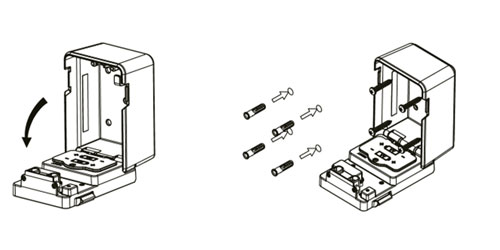
What you Need: pencil or marker, Phillips head screwdriver, level, drill, and drill bit. For certain surfaces, we recommend using anchors and a hammer.
- Open the compartment door and position the lock on the desired surface
- Use level to verify the lock is vertical and mark the position of the screw holes on the surface
- Remove lock and drill holes
- If necessary, use hammer to place anchors
- Position lock
- Insert and tighten screws
- Close compartment door
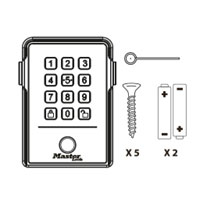
The package contains the Biometric Select Access™ Key Lock Box, 2 batteries, a reset pin and 5 screws.
The complete user instructions can be found here.
Biometric Padlock 4901EURDLHCC
View instructions or instructional video for how to add your fingerprints and additional user fingerprints on your 4901EURDLH Biometric Padlock. You can add up to 10 fingerprints to enable sharing access with family, friends, or employees in a home, school or business environment.
View instructions or instructional video on how to change your combination on your 4901EURDLH Biometric Padlock.
View instructions or instructional video on how to delete your fingerprints on your 4901EURDLH Biometric Padlock.
View instructions or instructional video on how to change the battery on your 4901EURDLH Biometric Padlock.
Biometric locks
How to ?

How to Add Fingerprints
4901EURDLH - Instructions for adding primary user and additional user fingerprints.See More

How to Change Preset Combination Code
4901EURDLH - Instructions for changing preset combination code.See More

How to Delete Fingerprints
4901EURDLH - Instructions for deleting primary user and additional user fingerprints.See More

How to Replace Battery
4901EURDLH - Instructions for replacing padlock battery.See More


